1. The Challenge of Multi-Image Formats in Digital Submissions
As remote work, digital classrooms, and online government services become the norm, we rely heavily on mobile phone cameras to capture print materials. We snap shots of receipts, academic transcripts, PAN cards, visa approvals, and contracts on the fly. This often leaves us with dozens of separate JPG or PNG files stored in our systems.
However, submitting structured reports or paperwork as a disorganized collection of loose image attachments is highly unprofessional and hard to manage. It increases the chance of missing pages and layout errors. Converting your raw image scans into a single, cohesive PDF is the best way to keep your documents organized and professional.
2. Why Converting to PDF Matters for Portals and Applications
Loose JPG files can lose their layout formatting across different devices. Using a unified, clean document layout helps ensure compatibility across several key platforms:
| Target Application | Recommended Formats | Why PDF is Superior |
|---|---|---|
| University & Homework Portals | Single PDF File | Combines multiple pages of homework sheets into a single, structured file. |
| Recruiting & Visa Gateways | PDF / DOCX | Locks text structures and details in place, preventing formatting errors on employer displays. |
| Legal Portfolios & Contracts | Secured PDF | Keeps signatures and timestamps structured, protecting legal documents. |
Furthermore, image compression inside a PDF container is often much more efficient than using folders of loose JPGs. This allows you to combine multiple documents into a single, lightweight file. Your images are parsed and optimized locally in your browser, keeping your sensitive documents secure.
3. Step-by-Step Instructions: Converting JPG to PDF Online
GetFixMyFile offers a highly secure, client-side JPG to PDF converter. Your files are processed entirely inside your active browser tab, so your data never touches the cloud filesystems. Follow this straightforward tutorial to convert your files:
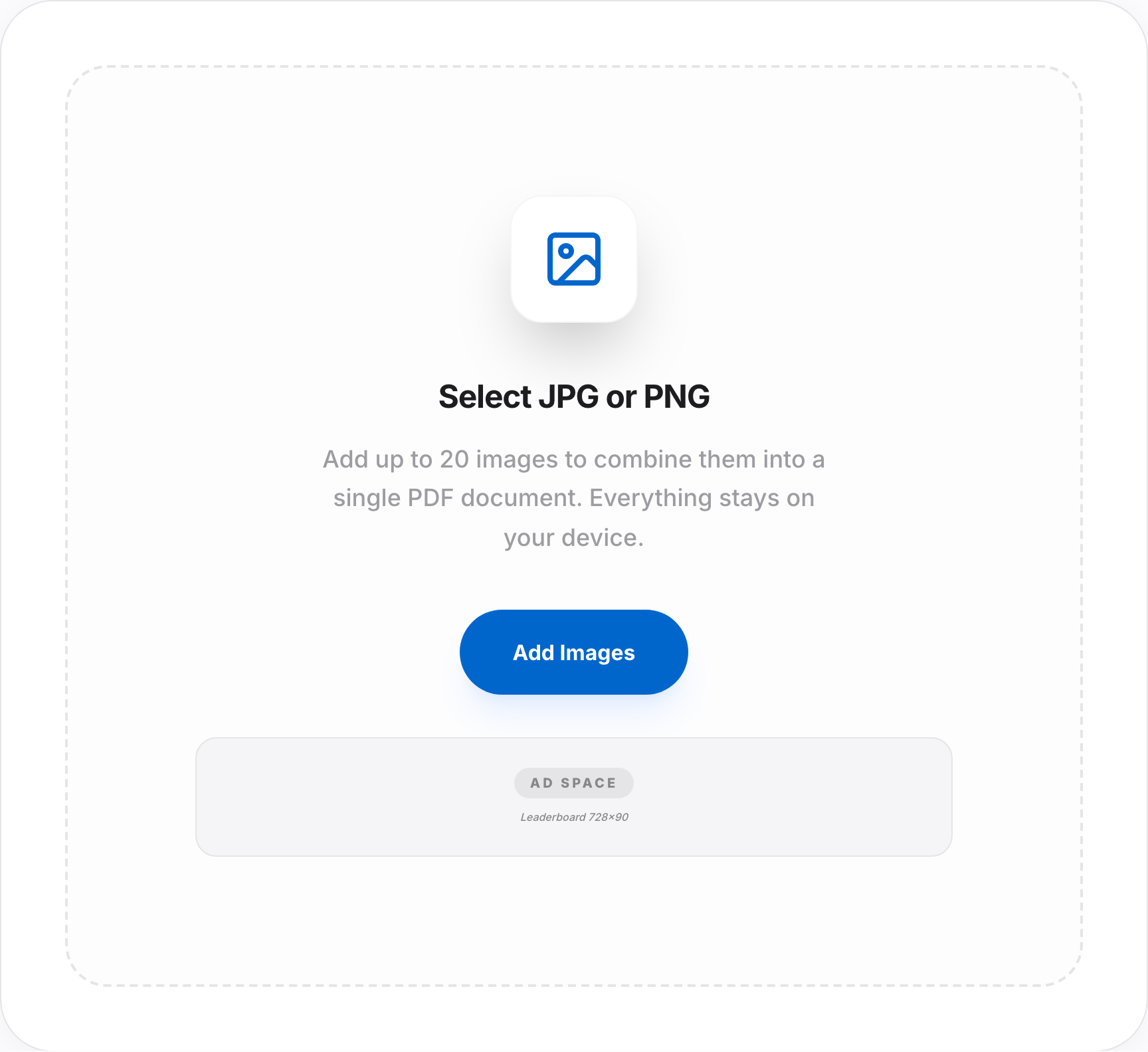
- Access the Conversion Hub: Open our secure JPG to PDF Converter Tool.
- Import Your Image Scans: Drag and drop your JPG or PNG files directly into the dashed work box, or click to browse and select them manually.
- Reorder Your Pages: Drag and drop your uploaded images to arrange them in the correct page order.
- Compile Your Document: Click the "Convert to PDF" button to run our local compiler scripts.
- Save Your output: Click the "Download PDF" button to save the newly optimized file directly to your device.
Convert Your Images to PDF Instantly!
Combine your JPG and PNG snapshots into a clean, professional PDF file directly inside your browser.
Convert JPG to PDF4. Common Conversion Mistakes and Red Flags to Avoid
To get the cleanest results when converting your image files, watch out for these typical pitfalls:
- Uploading Blurred or Folded Scans: Fuzzy details are magnified during conversion. Ensure your original photos are sharp and captured in good lighting.
- Forgetting to Reorder Pages beforehand: Always reorder your files using our preview thumbnails before clicking convert to save time reformatting pages later.
- Mixing Portrait and Landscape images unnecessarily: Mixing physical page layouts can cut off margins during printing. Crop and align your images before converting.
- Using heavy target file weights: Multi-image PDFs can be heavy. Use our Compress PDF utility afterward to keep files light for easy email sharing.
5. Pro Tips for High-Resolution Document Quality
Keep these simple guidelines in mind to achieve high-quality conversions for official doors and directories:
- Sign Documents with Dark Ink: When scanning certifications, use dark blue or black ink to keep lines sharp and clear throughout the scanning process.
- Capture Images on Solid Backgrounds: Snapping photos on clean, solid backdrops helps our crop scripts isolate pages automatically, saving you time.
- Leverage Local Browser Applications: Local browser operations are fast and highly secure. They run entirely in your tab, protecting your identity.
6. Frequently Asked Questions (FAQ) Regarding JPG to PDF Conversions
Q1. Is there a page upload limit for free users?
No. GetFixMyFile is 100% free with no daily caps, paywalls, or watermark additions on your files.
Q2. Are my images kept completely secure and private?
Absolutely. All compilation math is handled inside your active tab using Javascript. Your photos are never sent to external servers, protecting your privacy.
Q3. What formats are supported for conversion?
We support all popular image formats, including JPG, JPEG, and PNG. The output is a highly compatible, standard PDF.
Q4. Can I organize page layouts inside this tool?
Yes, our tool lets you drag and drop your uploaded images to arrange them in the correct page order before compiling.
Q5. Will my converted PDF maintain image resolution?
Our compiler scales images to fit standard layouts while keeping your original resolution details intact.
Q6. Can I convert PDFs back into JPEGs afterward?
Yes, you can extract pages from your documents as high-quality images anytime using our PDF to JPG Converter.
Q7. Why is my PDF file size too heavy?
Combining several uncompressed images can result in large files. Run our Compress PDF Tool to optimize the file size for easy email sharing.
Q8. Do you support mobile devices?
Yes. Our responsive layouts work smoothly in all mobile browsers, including Safari, Chrome, and Edge.
Q9. Do I need to register or sign up for an account?
No, you can enjoy all features with no registrations, password setups, or email verifications.
Q10. Can I convert my PDFs to editable Word sheets?
Yes! You can convert your PDF documents to editable Microsoft Word files using our online PDF to Word utility.